I Want to play online, but there is a problem!
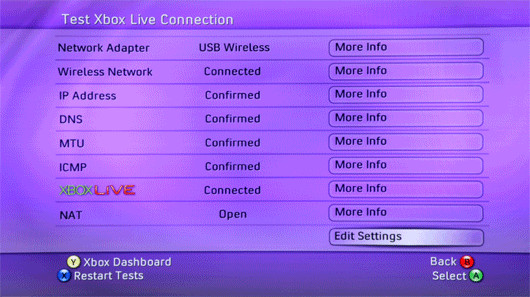
Now as most of you know, this is not the type of post you usually expect from me. The truth is, I have a problem and I need some help.
As the screen shot above illustrates, this is a test for your Xbox Live connection using a wireless network adapter. The fourth option down is called the DNS test. When I test my wireless connection, the network adapter, wireless network, and IP address all check out fine. The problem I have is that the darn DNS test keeps failing.
I have one idea of what it could be, let’s hope I’m right. Maybe the type of router I have is not compatible with Xbox Live, or at least not this version of it. When I checked on the Xbox.com website the other day, it told that me that versions 2, 3, and 4 of Linksys routers are compatible. I found out that I have version 6 of this router, with the same model number (WRT54G), but no Xbox Live connection.
 So as you can already tell, this is a situation that stresses me out. So before I buy a new router, I thought I’d extend my plea to this great community of XBL Radio (and now Platform Nation) to see if any gamer out there can help me out. Leave me a comment if you have some idea of what to do, I’d certainly appreciate it.
Here is Xbox.com’s solution. See if it makes sense…
http://www.xbox.com/en-US/support/live/con-power.htm
Thanks gamers, I appreciate your help and I’ll see you again, right here, next week with a news story.
Take Care,
B4


2 Responses to “I Want to play online, but there is a problem!”
What do you have to say?

Meta:
Podcast Archives:


Subscribe to Podcast:


Links:
Twitter:

Contact Emails:
- MrCarpalTunnel
- The Other Guy
- Rusty Ranchero
- Steve519
- Gui J
- Silent Cypher
- All Of Us
- Physical Mailing Address


Blog Stats:
Podcasting Since Oct. 2005. Bloggin since 06 with 590 articals and 3,547 super cool comments from our awsome listeners.
XBLR STAFF:
- .0 Shows
- .5 Shows
- Clans
- Console Crimes
- E3
- Game Releases
- Gamer's Video Update
- Games
- Interview
- Ipod
- Kemanswar
- Microsoft
- Movies
- Nintendo
- PAX
- Podcast
- Review
- Rumor Control
- Shows
- Silent Cypher
- Sony
- Sports
- Tech News
- Uncategorized
- Video
- Websites
- Wii
- X3R0 9
- XBL Radio
- December 2007
- November 2007
- October 2007
- September 2007
- August 2007
- July 2007
- June 2007
- May 2007
- April 2007
- March 2007
- February 2007
- January 2007
- December 2006
- November 2006
- October 2006
- September 2006
- August 2006
- July 2006
September 17th, 2007 at 7:53 pm
Just go onto your computer, press Start > Run > Type “cmd” press enter. Type “ipconfig” and what does it say your default gateway is?
Whatever your default gateway is, just pop it into your Xbox Live settings as the DNS. Tell me if that works.
September 22nd, 2007 at 8:20 am
Here are the steps. I have the same router. Follow them exactly and yo ushould have no problem: Hardware Instructions:
1. On your computer, go the administration or configuration page of your gateway, router, or wireless access point. For information about using this page, see the manufacturer’s instructions for your device.
2. Write down your wireless network name (SSID), channel, and the security key (WEP key or WPA passphrase) for your wireless network.
3. Before you connect any cables, make sure there is no disc in the disc tray of your console.
4. Turn off your console.
5. Connect your wireless device:
* If you are using a wireless-to-Ethernet bridge (sold separately from your system), following your manufacturer’s instructions, connect one end of the Ethernet cable to the Ethernet port on the bridge. Connect the other end to the Ethernet port on the back of your console.
* If you are using an Xbox 360 Wireless Networking Adapter (sold separately from your system), connect the USB connector to the USB port on the back of the console. Do not use the front USB ports.
6. Turn on your console and wireless device.
* If you have a wireless-to-Ethernet bridge, turn the device on.
* If you have an Xbox 360 Wireless Networking Adapter, the device will turn on with the console.
Xbox 360 Software Instructions:
7. Turn on your Xbox 360 console.
* If this is the first time you are turning on your console, you will need to complete the initial setup and create a profile before continuing.
8. In the System area of the Xbox dashboard, select Network Settings.
9. Consider using Windows Connect Now:
* If you have a computer running Windows XP SP2 or later and would like to use Windows Connect Now, go to www.xbox.com/setup. If you use Windows Connect Now, do not follow the software instructions on this page. Follow the instructions at www.xbox.com/setup instead.
* If you do not have a computer running Windows XP SP2 or later, or would not like to use Windows Connect Now, proceed to the next step.
10. Select Edit Settings.
11. From the Basic Settings tab, select Wireless Mode
* If you have not set your locale on the console, you will be asked to set it. Your locale is the country or region you are connecting to Xbox Live from.
12. Is your wireless network name (SSID) is displayed on the screen?
* If it is displayed, select it.
* If it is not displayed because you are connecting to a wireless network where the network name is not being broadcast, choose Specify Unlisted Network. Select the security type for the network, and then enter the wireless security settings for the network.
13. Is your network secured with a WEP key or WPA passphrase?
* If your network is secured with a WEP key or WPA passphrase, enter your wireless security settings.
* If your network is not secured, you will not have the option to enter wireless security settings.
14. When prompted, select Test Xbox Live.
15. If the Xbox Live test reports Connected, congratulations! You have successfully connected your Xbox 360 console to Xbox Live. If you would like to review your settings, select Edit Settings. If you would like to begin gaming, select Xbox dashboard (Y button).